
Microsoft Family Safety
Microsoft CorporationParenting
3.82.44K Reviews
- Version
- 2.1.1.1252
- Installs
- 5.00M
- Age Rating
- Everyone
Screenshots
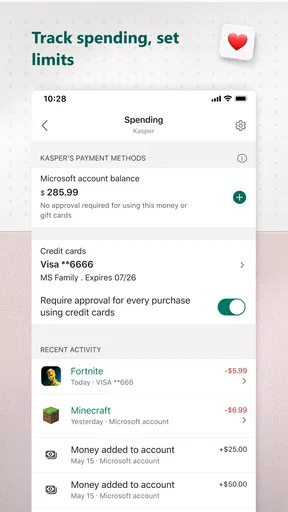
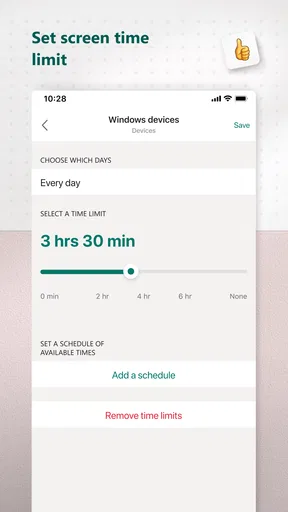
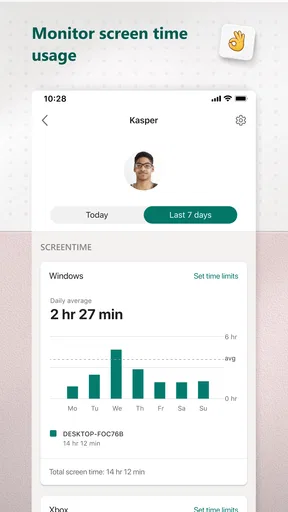
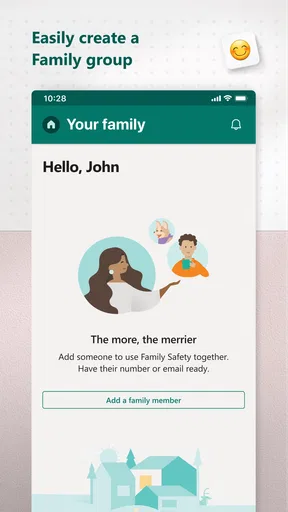
Our Review of Microsoft Family Safety
 Analysis by Appyee
I’ve found that the hardest part of using a family-safety app is rarely finding the settings; it’s deciding which boundaries make sense and then getting everyone to follow them. Microsoft Family Safety is best approached as a shared household tool, not a silent way to watch every moment. It can help parents see patterns and coordinate routines, but it works better when children know what is being managed and why.
Start with the family routine, not the controls
Before changing limits, I’d first talk through the situations you want to improve: bedtime scrolling, games during homework, or uncertainty about a trip home. That conversation helps avoid setting restrictions that are technically easy but constantly interrupt ordinary life. For example, a child who needs a device for schoolwork may need a different routine from one who mainly uses it for entertainment.
I also recommend agreeing on what counts as a reasonable exception. A late journey, a school project, or a family event can make a fixed boundary awkward. Having a simple way to discuss exceptions makes the app feel less like a punishment and more like a tool for keeping expectations clear. The app can support a family agreement, but it cannot replace one.
What to check when setup feels stuck
Family controls depend on the family being organized correctly across the devices and accounts involved. If a setting does not seem to affect the right person or device, I’d check that the child is using the account included in the family arrangement and that the relevant device is associated with it. A limit aimed at one account will not help much if the child regularly switches to another.
It is also worth separating the different jobs the app is doing. Screen-time management, content restrictions, and location sharing answer different questions, so one working does not automatically mean the others are configured as you expect. I’d test one change at a time, then check the relevant device or account before adding more rules. That makes it easier to spot a setup mistake instead of changing several things blindly.
Microsoft Family Safety is a free parenting app from Microsoft Corporation, and it is suitable for everyone. It has a 3.9 average from around 46,000 ratings, with more than 5 million installs. The current version is 2.0.4.1083, and it requires Android 9 or later. Those details make it an accessible starting point for families already using Microsoft’s ecosystem, though the experience still depends on configuring each person’s accounts and devices sensibly.
Recovering when a routine stops working
If a child says a limit is blocking something they need, I would first identify the exact activity and time rather than removing every boundary. A broad reset may solve the immediate complaint but can also undo rules that were working. Narrow troubleshooting is more useful: check which account is in use, confirm which rule applies, and then adjust only the part that causes trouble.
The weekly activity reports are most valuable as conversation starters, not as a scorecard. A sudden increase in time on one app may reflect a new hobby, a school task, or simply a change in routine. Looking at the pattern together can lead to a more sensible adjustment than reacting to one busy day. That is one of the practical strengths of a family dashboard: it can make an otherwise vague concern specific enough to discuss.
When the phone or connection is the real issue
Location information and other family settings can be affected by the device itself, its account, or its connection. If a location appears stale or an alert does not arrive when expected, I would avoid assuming that the child has ignored the arrangement. First check whether the device is available and connected, whether location sharing is enabled for that family member, and whether the correct person is being viewed. It is a calmer and fairer way to investigate than treating every delay as a behavior problem.
Location sharing also deserves a family conversation of its own. It can be reassuring when a child travels independently, but it is not a substitute for a phone call, a meeting plan, or emergency services. Since family members have control over sharing, it should be agreed upon openly. I would use it for practical coordination, such as checking that someone has reached an agreed destination, rather than expecting a map to provide constant certainty.
Keeping Tabs on Digital Adventures
First off, Microsoft Family Safety does a stellar job of helping you monitor your family’s digital habits. From screen time to location tracking, it’s got you covered. The app lets you set limits on how much time your kids can spend on apps and games. This is super handy if you’re trying to ensure they’re not glued to their devices all day long.
What I love is how you can get weekly activity reports. It’s like getting a sneak peek into your kids’ online world without being intrusive. You’d be surprised how much time they spend on certain apps, and this feature helps you have those important conversations about balance.
Location Sharing: Peace of Mind
One of the coolest features has to be location sharing. You can see where your family members are on a map. Perfect for those "where are you now?" moments. And don’t worry, it respects everyone’s privacy because each member has control over this feature.
Plus, you can set up location alerts. So if your kiddo arrives at school or leaves grandma’s house, you’ll get a notification. It’s like having an extra layer of security, which is always a win in my book.
Setting Boundaries with Ease
Let’s talk about parental controls. With this app, setting boundaries is a breeze. You can block inappropriate websites and even tailor what content your kids can access based on their age. It’s reassuring to know you can keep their online experiences safe and age-appropriate.
The app also works seamlessly across devices, so whether your family uses Windows, Xbox, or Android, you’re all set. It’s like having a universal remote for your family’s digital life!
Friendly Interface
Now, let’s chat about the interface. It’s super user-friendly. You don’t need to be a tech whiz to navigate through the settings. Everything is laid out clearly, and setting up the app is straightforward. Even my non-techie friends can get this running in no time!
And guess what? The app’s design is sleek, which makes it pleasant to use. It’s not cluttered with unnecessary features, just the good stuff that you actually need.
Final Thoughts
So, would I recommend Microsoft Family Safety? Absolutely! If you’re looking for a way to manage your family’s screen time and ensure their online safety, this app does the trick. With its practical features and ease of use, it’s a great tool for any parent striving to find that digital balance.
Whether you’re tech-savvy or just diving into the world of digital parenting, this app is a solid choice. It’s like having a trusty sidekick to help navigate the digital landscape. Happy parenting!
A realistic weeknight workflow
Imagine a school night when homework, dinner, and downtime all compete for attention. I’d use the activity view to notice whether gaming is taking over the evening, then talk with my child before changing the limit. A small adjustment tied to a particular routine is more likely to stick than a sudden blanket restriction. The point is not to make every minute look identical; it is to give the family a shared reference when the same disagreement keeps returning.
Location tools fit a different part of that routine. If a child is walking home or going to a relative’s house, an agreed arrival alert can reduce repeated check-in messages. I would still set a clear plan for what to do if plans change, because an alert only helps when the device and sharing setup are functioning. Treat it as a convenience, not proof that everything is fine.
Where it differs from other parenting tools
Compared with a single-device timer or a built-in screen-time setting, Family Safety is more useful when the household already relies on Microsoft accounts and uses a mix of supported devices. Its appeal is the attempt to bring activity, boundaries, and family location into one place. A basic timer may be quicker if all you need is a bedtime cutoff on one phone, while a dedicated router control may suit a parent whose main goal is managing the home network rather than individual family accounts.
That wider scope has a trade-off: a family dashboard is only as tidy as the account setup behind it. If relatives use shared logins, children switch accounts, or devices are managed in different ways, it can take more attention to understand which setting applies. I would not choose it solely because it promises broad coverage; I’d choose it when the family is willing to keep accounts and expectations reasonably organized.
Who will get the most from it
I think it is a good fit for parents who want a calmer way to discuss screen habits, especially when children use Microsoft services alongside Android devices. It can also help a family coordinate independent travel without sending constant messages. The most useful approach is modest: pick one concern, such as late-night gaming or arrival check-ins, and see whether the app makes that specific routine easier before relying on every available control.
It is less suited to families looking for a completely hands-off solution. A dashboard cannot decide whether a child’s extra screen time was useful, explain why a boundary exists, or settle disagreements about trust. Older children may also respond better to negotiated rules than controls imposed without discussion. If the priority is simply limiting one device, its built-in controls may be enough and involve less family-account setup.
Small habits that make the controls more useful
One practical tip is to review reports at a consistent, low-pressure time rather than checking them in the middle of an argument. That keeps the information from becoming a gotcha and makes it easier to compare an ordinary week with a genuinely unusual one. Another is to introduce a single restriction first. When several limits change together, it becomes difficult to tell which one caused friction or solved the original problem.
I would also explain location sharing as a two-way agreement: what the parent uses it for, when a child can expect an alert to matter, and what to do if the phone is unavailable. That simple expectation-setting prevents a map from being treated as an always-current safety guarantee. For online content controls, parents should still have occasional conversations about what children encounter; filtering can reduce exposure, but it is not a replacement for guidance.
What I would expect before installing
The app is free, which makes it easy to try, but the real investment is time spent getting family accounts and devices aligned. Its 3.9 average across around 46,000 ratings suggests a mixed experience rather than universal satisfaction, so I would approach setup with realistic expectations and test the important controls instead of assuming every device will behave identically. It has been available since July 17, 2020, and its current Android release is 2.0.4.1083; Android 9 is the minimum requirement.
As with any parenting tool, the best measure is whether it reduces confusion without turning family life into constant monitoring. I’d keep only the controls that solve a real problem, revisit them as routines change, and make sure children understand what is being shared. If that balance sounds right for your household, it is worth considering; if you want a private, one-device timer with almost no account management, a simpler built-in option may be the better fit.
Privacy and Permissions
See what permissions an app requests and how it handles your data.
- Contacts
- read your contacts
- Location
- approximate location (network-based), precise location (GPS and network-based)
- Phone
- read phone status and identity
- Wi-Fi connection information
- view Wi-Fi connections
- Device ID & call information
- read phone status and identity
- Other
- view network connections, full network access, run at startup, prevent device from sleeping
Verdict
Strengths of Microsoft Family Safety
- Comprehensive location tracking features.
- Screen time limits for multiple devices.
- Customizable content filters for safety.
- Activity reports provide detailed insights.
- Cross-platform compatibility.
Limitations of Microsoft Family Safety
- Limited features on the free version.
- Can be complex for non-tech users.
- Requires constant internet connection.
- Some features drain battery quickly.
- Occasional syncing issues reported.
Other Releases by Microsoft Corporation
View All
Microsoft OneDrive
Productivity4.6

Microsoft OneNote: Save Notes
Productivity4.6

Link to Windows
Productivity4.0

Microsoft PowerPoint
Productivity4.8
Similar Picks in This Category
View All
Family Space
Motorola Mobility LLC.3.9

شرطة الأطفال - مكالمة وهمية
Oub Apps4.1

Findmykids: Parental Control
LETEM LTD4.6

Pregnancy + | Tracker App
Philips Electronics UK Limited4.8

Policía de niños - para padres
Kids police4.7

Pregnancy App
Amila4.9
Frequently Asked Questions
What is Microsoft Family Safety and how does it work?
Microsoft Family Safety is an app designed to help families manage screen time, track locations, and promote healthy digital habits. It works by allowing parents to set limits on app usage, monitor device activity, and receive location updates. The app integrates with Microsoft accounts and can be used across multiple devices to ensure consistent monitoring and control.
Is Microsoft Family Safety compatible with all devices?
Microsoft Family Safety is compatible with Android and iOS devices, as well as Windows PCs. However, some features may vary depending on the operating system. To get the most comprehensive experience, it is recommended to use the app in conjunction with Microsoft accounts across all family devices.
How does Microsoft Family Safety handle privacy concerns?
Microsoft Family Safety prioritizes user privacy by providing robust settings to control data sharing. Users can manage permissions and adjust who can see location and activity data. Microsoft assures that personal data is securely stored and not shared with third parties without consent, adhering to strict privacy standards.
Can parents customize settings for each child in Microsoft Family Safety?
Yes, parents can customize settings for each child within Microsoft Family Safety. This includes setting screen time limits, blocking specific apps or websites, and tailoring content filters based on age-appropriateness. These personalized settings help ensure that each child's digital experience is safe and suitable for their needs.
What are the main benefits of using Microsoft Family Safety?
The main benefits of using Microsoft Family Safety include promoting healthy digital habits by setting screen time limits, ensuring online safety through content filters, and providing peace of mind with family location tracking. Additionally, it fosters open communication within families about digital usage and helps parents guide their children's online activities effectively.
